
AI Tools
MCP Server for Sellers
Installing the Visa Acceptance MCP Server in Claude Desktop (Sample MCP)
The Visa Acceptance API (formerly Cybersource) MCP Server exposes invoicing and payment link management as tools Claude can call directly. This guide walks through adding it to Claude Desktop as a Custom MCP connector.
Prerequisites
- Claude Desktop (latest version), with Developer Mode enabled under Settings → Developer
- A Visa Acceptance (Cybersource) merchant account
- Your Merchant ID and REST API Key, available from the Visa Acceptance Developer Center
Server Details
| Field | Value |
|---|---|
| Server name | visa-acceptance-mcp |
| Transport | Streamable HTTP |
| Endpoint | https://mcp.developer.cybersource.com/v1/sse |
| Auth type | OAuth 2.1 (PKCE) |
Installation Steps
- Open Claude Desktop and go to Settings → Connectors.
- Click Add Custom Connector.
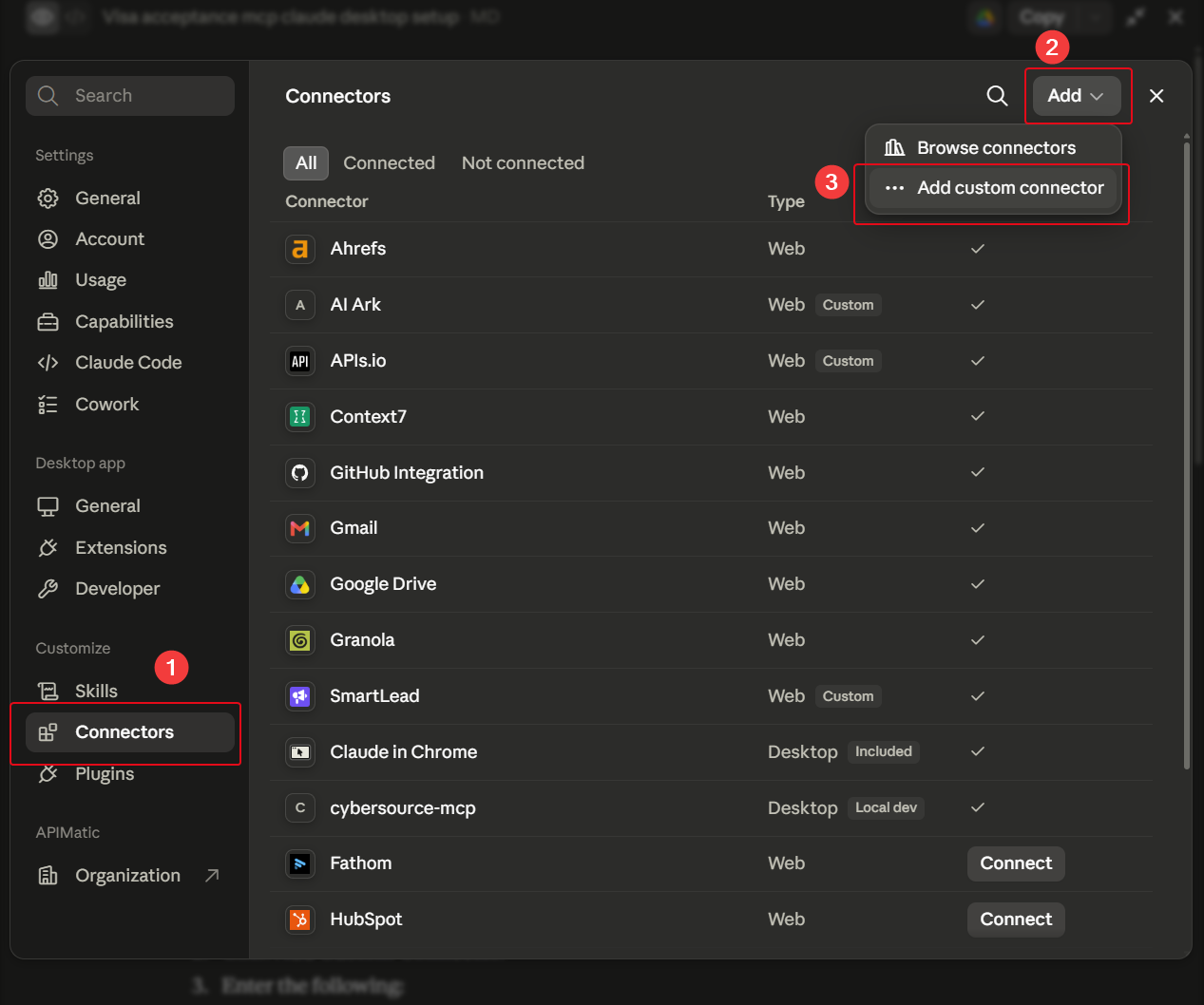
- Enter the following:
- Name:
Visa Acceptance (Cybersource) - URL:
https://mcp.developer.cybersource.com/v1/sse
- Name:
- Click Connect. You'll be redirected to Visa Acceptance's login page — authenticate with your merchant credentials and approve the requested scopes:
invoices:readinvoices:writepayment_links:readpayment_links:write
- Once authorized, Claude Desktop will return to the app and the connector will show a green Connected status.
- Confirm the tools are available by asking Claude something like:
"Using the Visa Acceptance MCP server, list my open invoices."
Available Tools
| Tool | Description |
|---|---|
create_invoice | Create a new Visa Acceptance invoice |
get_invoice | Get one invoice by ID |
update_invoice | Replace or update an existing invoice by ID |
list_invoices | List invoices with pagination and optional status filtering |
send_invoice | Send an existing invoice to its customer |
publish_invoice | Publish an existing invoice without sending it by email |
cancel_invoice | Cancel an existing invoice by ID |
create_payment_link | Create a standalone payment link for a purchase or donation |
get_payment_link | Get one payment link by ID |
update_payment_link | Update an existing payment link, e.g. changing status or expiry |
list_payment_links | List payment links with pagination |
Troubleshooting
- Connector shows "Unauthorized": Re-check that your Client ID is active and the correct scopes were approved during OAuth.
- Tools not appearing: Restart Claude Desktop after connecting; tool lists refresh on launch.
- Timeouts: The MCP endpoint may take a few seconds to warm up on first connection — retry after 30 seconds.
Note: This MCP server integration is for demonstration purposes on this sample API Portal.